
1. Navigate to Fresha
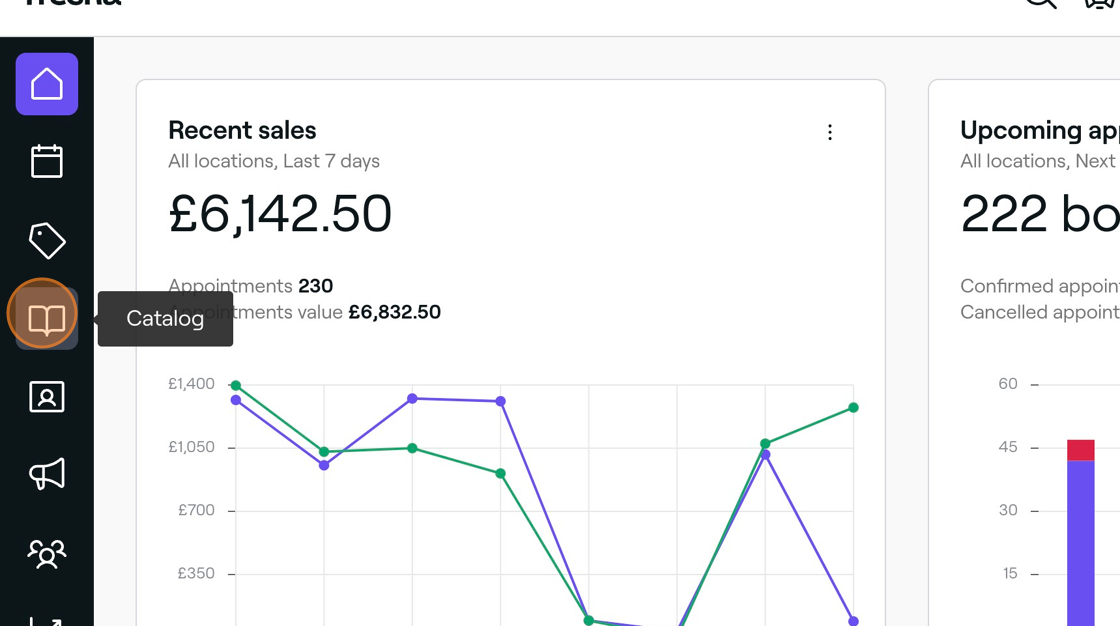
2. Click the 'Catalog' icon
3. Click "Stocktakes"
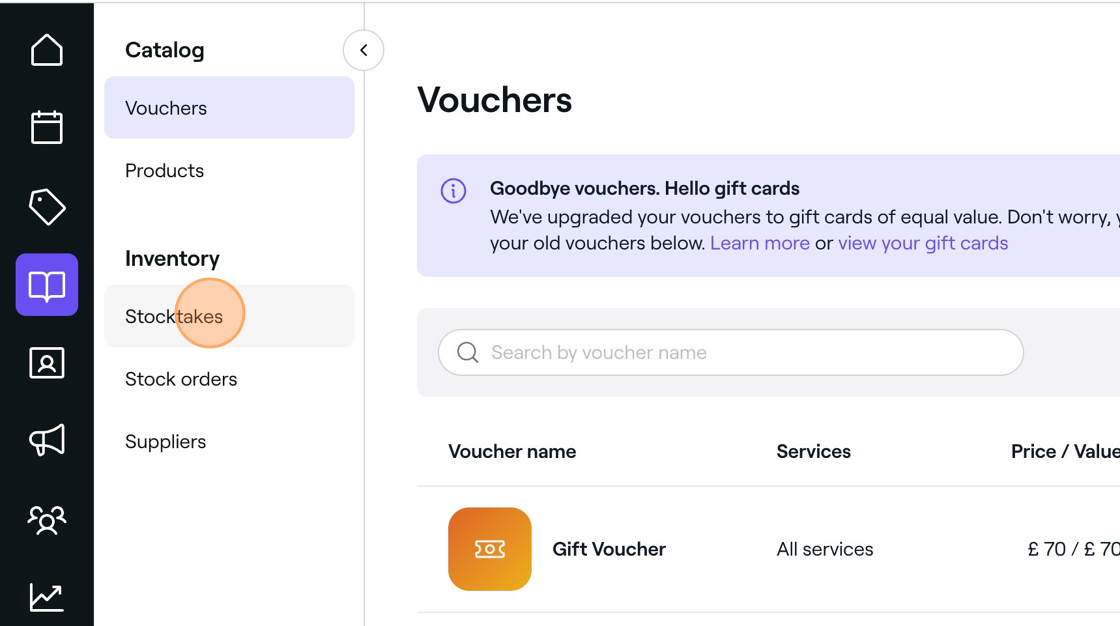
4. Click "Add"

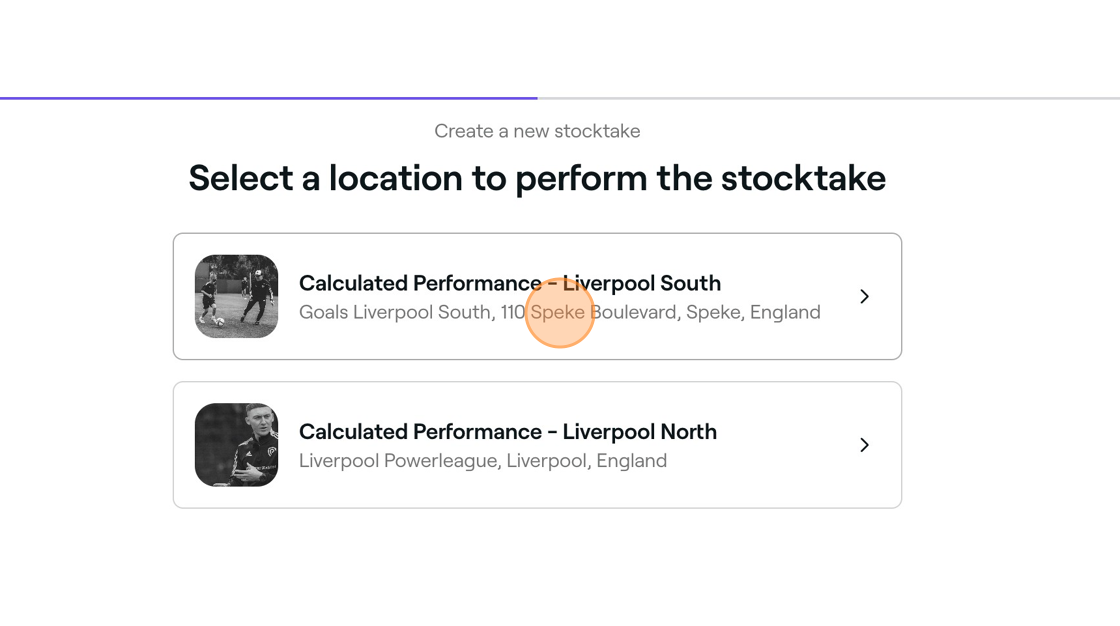
5. Select the relevant site
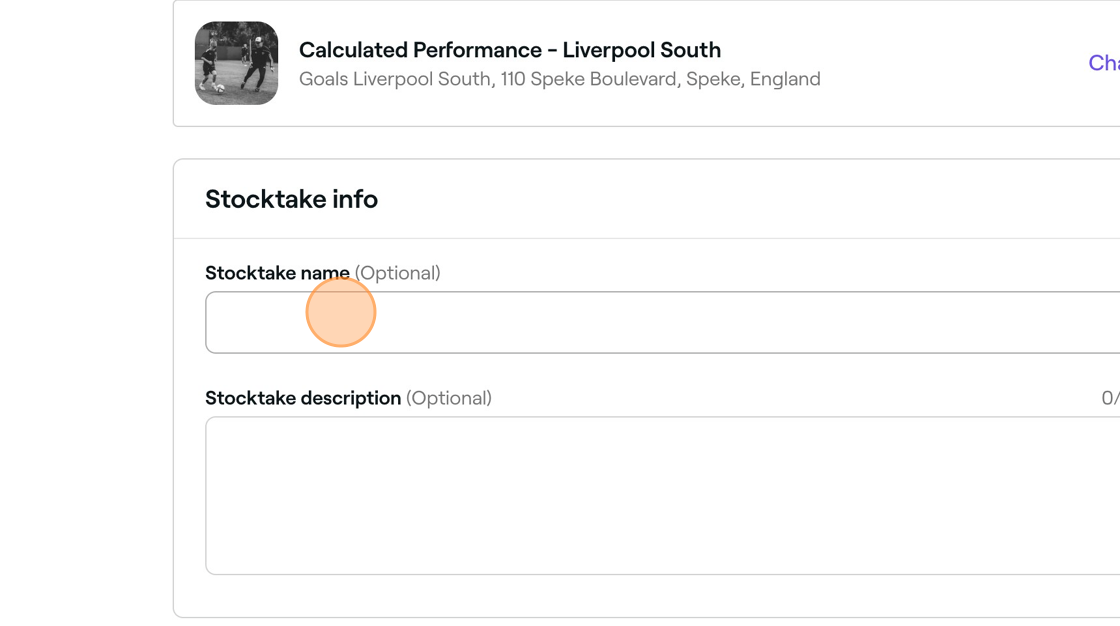
6. Type "W/C ... 202.." in the 'Stocktake name' field
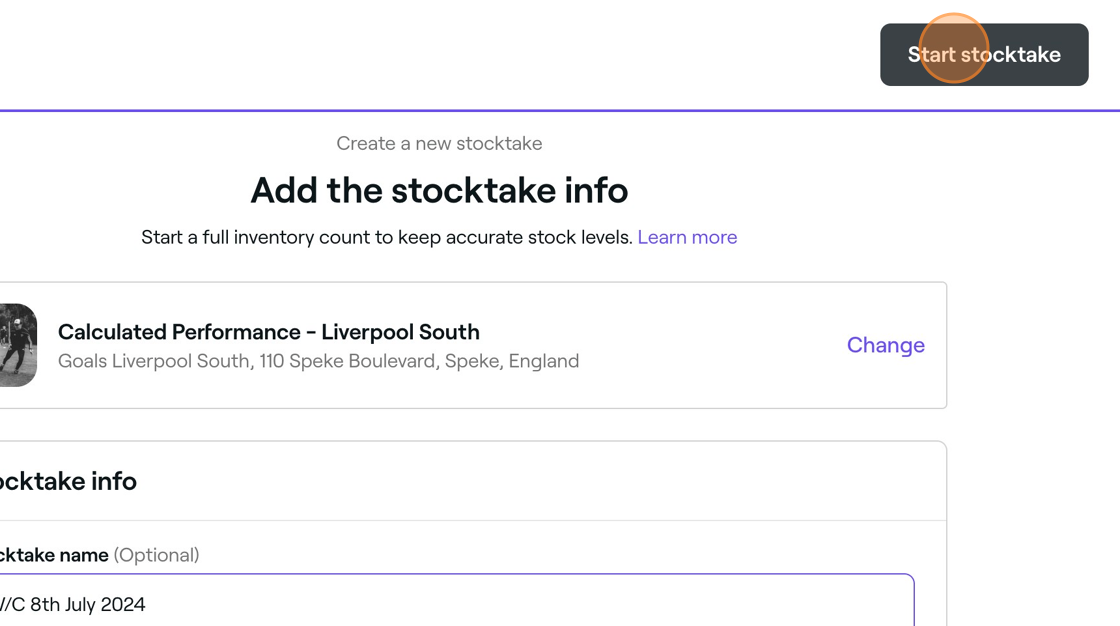
7. Click "Start stocktake"
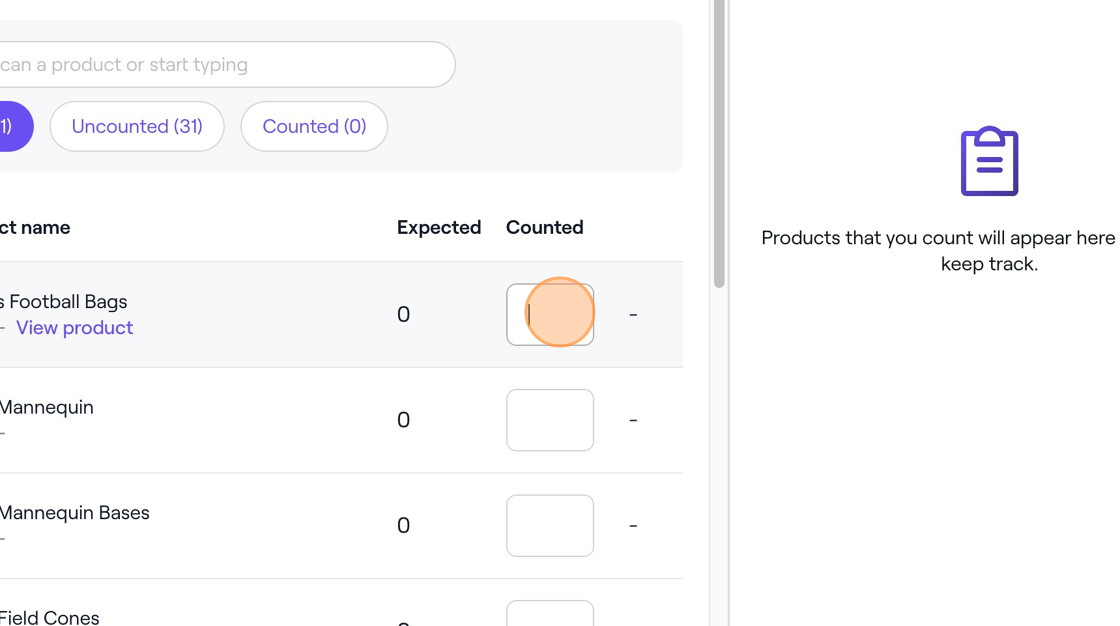
8. Enter the number of items in this column
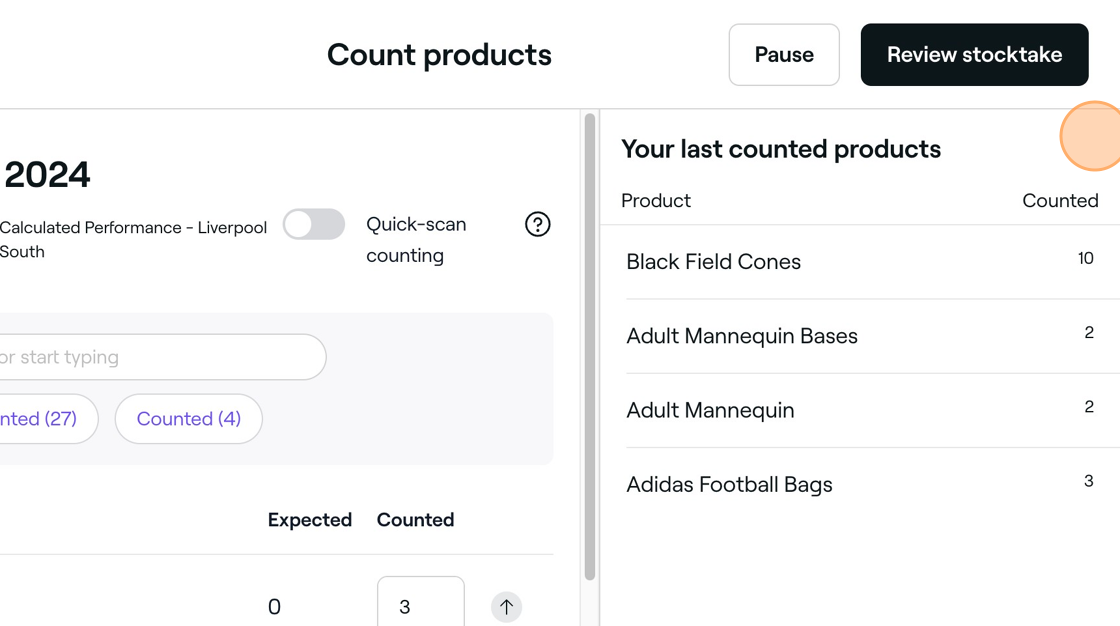
9. You will see a list of counted items under "Your last counted products"
10. Click "Review stocktake"

11. To save as a draft, click "Options" and click "Save as draft"
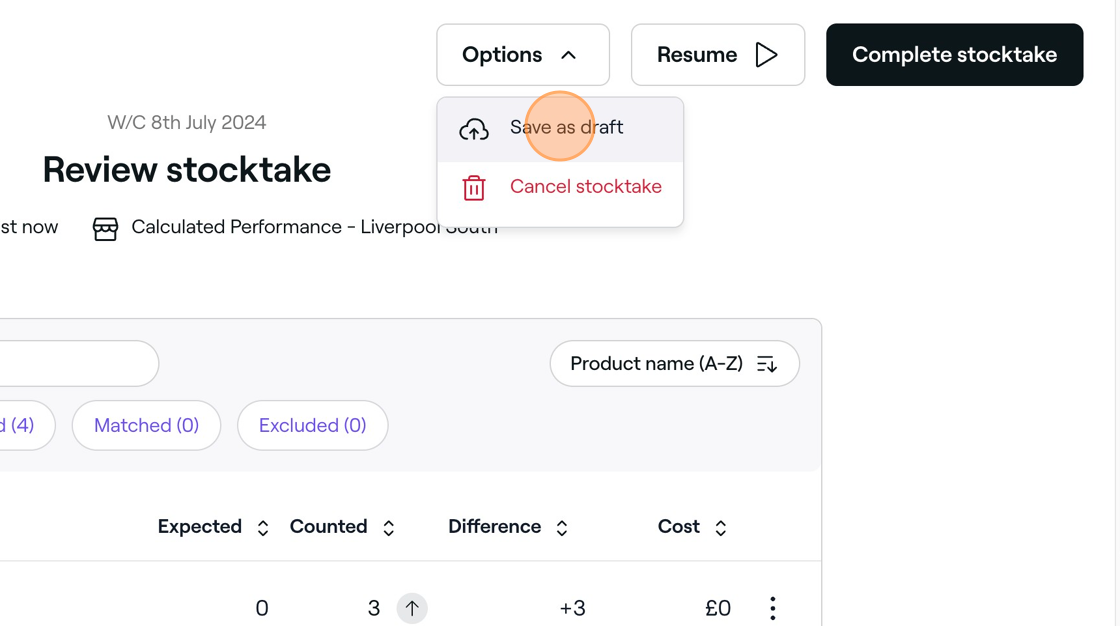
12. To finish stocktake, click "Complete stocktake"

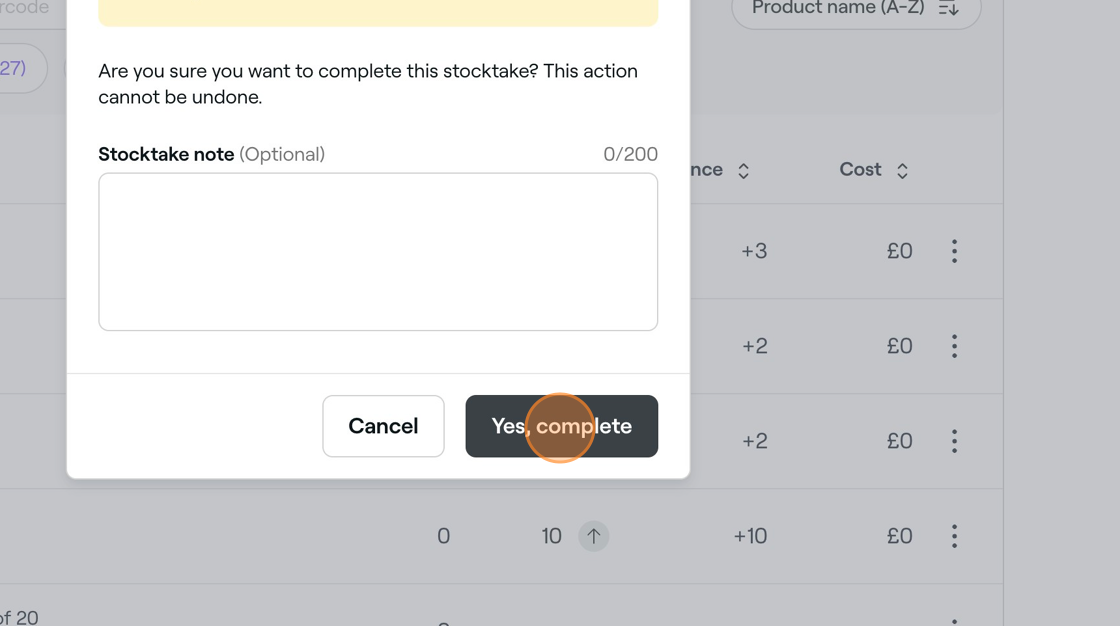
13. Click "Yes, complete"
14. You will see the completed stocktake under "Stocktakes"
